![CloudNine_Transparent_Low Res.png]](https://kb.cloudnine.com/hs-fs/hubfs/1%20-%20CloudNine%20MARKETING/1%20-%20LOGOS/CloudNine%20Logos/CloudNine_Transparent_Low%20Res.png?height=40&name=CloudNine_Transparent_Low%20Res.png)
- Add Sources to an Import Session
- Expand whichever Custodian contains the desired sources by clicking the
 button.
 - From here, you can remove sources in the following ways:
- Select any top-level source(s) you want to completely remove, and then click the Delete Sources button. This can also be done after sources have been committed.
- Click the edit... link under the Folders column for any top-level source to open the Folder Selection window. From here, you can exclude individual sub-folders from that source.
⚠️ Once sources have been committed to a custodian, the edit... link changes to a view... link, and you will be unable to change sub-folder selections. 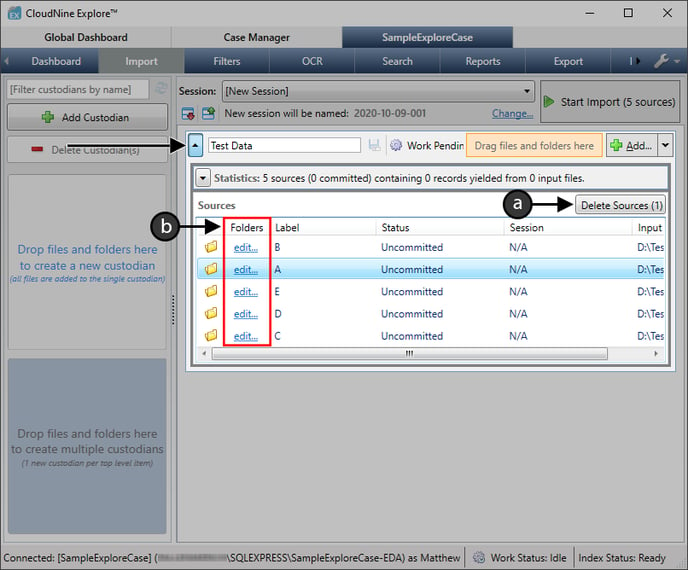
-
Within the Folder Selection window, use the check-boxes to deselect any individual sub-folders that you want excluded, and then click OK to save any changes.
💡 Once sources have been committed to a custodian, the Folder Selection window becomes read-only. 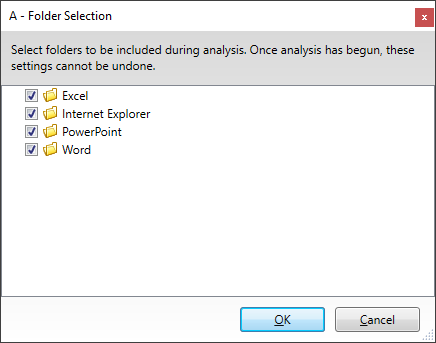
-
When you're finished removing sources, you'll be ready to take the following actions as desired:
-
Click Start Import at the top-right to begin importing any uncommitted sources.
| 💡 | Once the import has started, all sources will become permanently committed to their respective custodians. |