![CloudNine_Transparent_Low Res.png]](https://kb.cloudnine.com/hs-fs/hubfs/1%20-%20CloudNine%20MARKETING/1%20-%20LOGOS/CloudNine%20Logos/CloudNine_Transparent_Low%20Res.png?height=40&name=CloudNine_Transparent_Low%20Res.png)
- From the Case Manager tab, double-click on the desired Case to open it, and then navigate to the Import sub-tab.
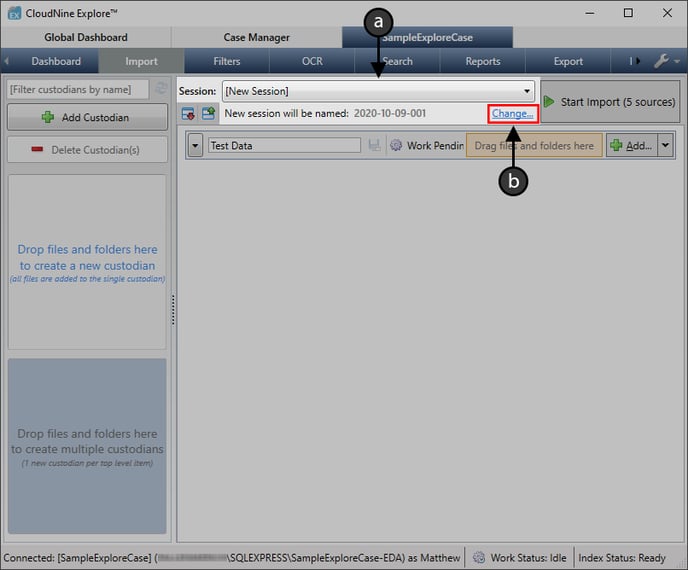
- From here, there are two ways to change the Session name:
- Use the [New Session] drop-down to select a previous session label. The selected session will be appended.
- Click the Change... link to open the Edit Import Session Label window, allowing you to enter a new session name.
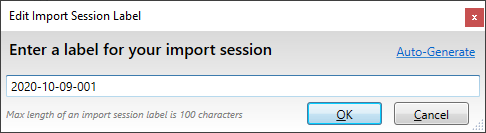
- From the Edit import Session Label window, enter a new session name into the box provided, and then click OK to apply it.
- You can also click the Auto-Generate link at the top-right to let Explore choose a suitable name, based on the current date and number of completed sessions.
- Once the desired session label is set, you'll be ready to take the following actions as desired:
- Add Sources to the Import Session
- Remove Sources from the Import Session
- Click Start Import at the top-right to begin importin any uncommitted sources.
| 💡 | Once the import has started, all sources will become permanently committed to their respective custodians. |