![CloudNine_Transparent_Low Res.png]](https://kb.cloudnine.com/hs-fs/hubfs/1%20-%20CloudNine%20MARKETING/1%20-%20LOGOS/CloudNine%20Logos/CloudNine_Transparent_Low%20Res.png?height=40&name=CloudNine_Transparent_Low%20Res.png)
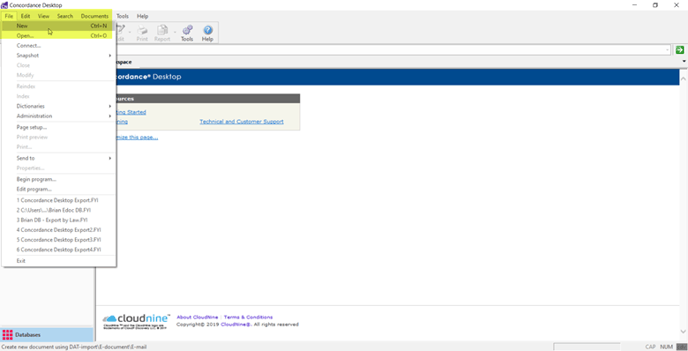
- Open Concordance Desktop and click ‘File’ and select ‘New’.
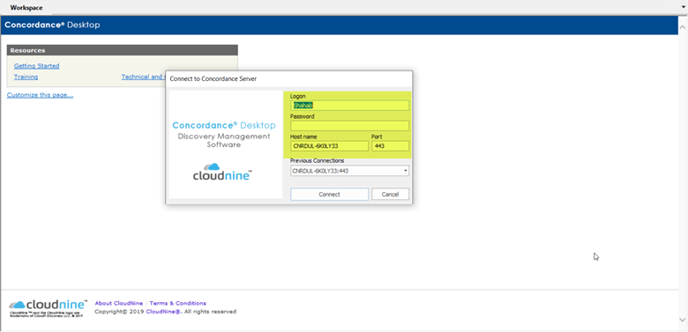
- Enter your User Credentials and click ‘Connect’.
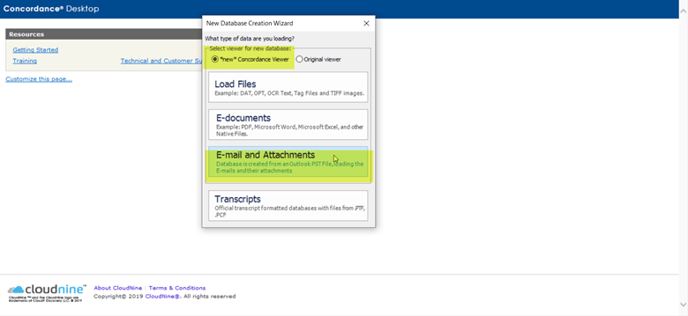
- Select ‘New Concordance Viewer’ and click ‘Email and Attachments’.
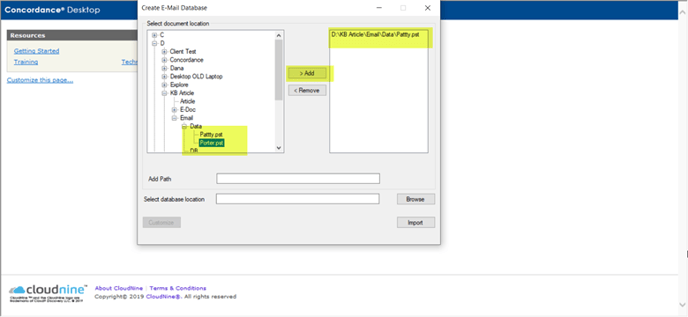
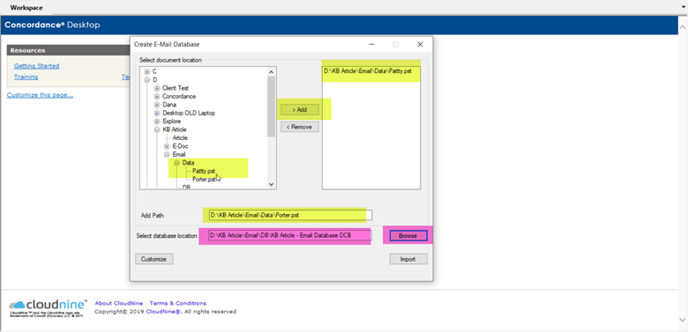
- Browse to the PST files and select ‘Add.’ (You may also copy the PST location in the ‘Add’ path and click ‘Add’)
- Browse to the location where you want to save the database and enter the database in the filename and click ‘Open’.
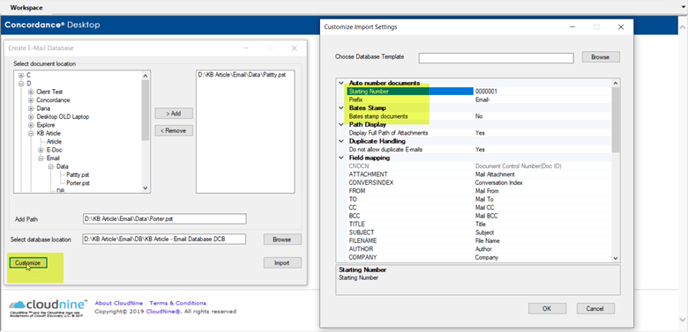
- Click ‘Customize’ to create your default Starting Number, DocID, Bates stamp the document, or change the field name. Click ‘OK’ when finished customizing.
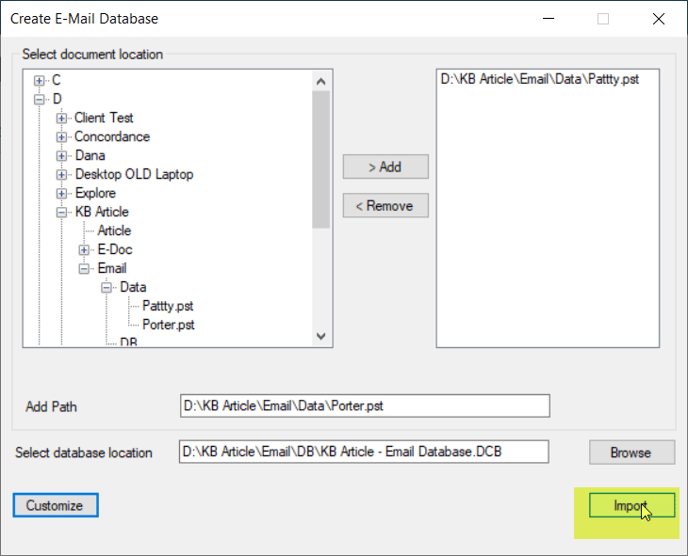
- Click ‘Import’.
- Please wait while your database is created. After it is complete, click ‘Open’.
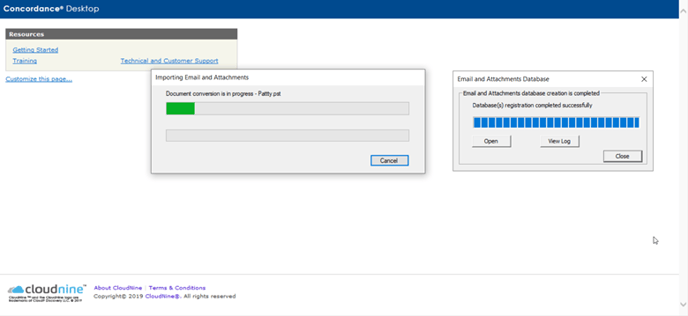
- Your email database is ready to use.
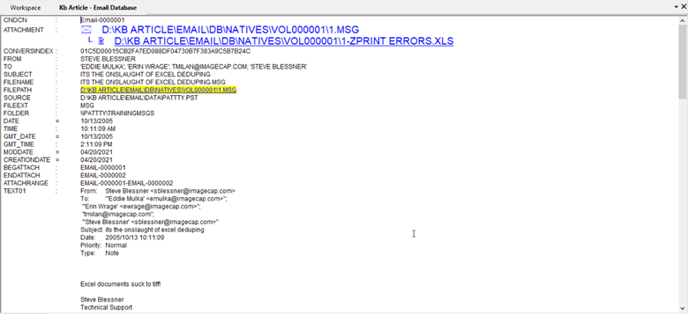
- Don’t forget to index your database (file and index).
Published by: Shahab Nikpeyman