---
title: "CloudNine Review: How do I Update Users, Enroll Users to Projects, and Set Project Rights?"
description: Updating User Information, Access Level, Enrollment and Rights
---
[Skip to content](https://kb.cloudnine.com/cloudnine-review-how-do-i-update-a-users-rigt#main-content)
English
Show submenu for translations
[Contact us](https://kb.cloudnine.com/kb-tickets/new?hsLang=en)

Open main navigation
Close main navigation
- English
Show submenu for translations
- [Contact us](https://kb.cloudnine.com/kb-tickets/new)
- [Go to cloudnine.com](https://cloudnine.com/)
[Go to cloudnine.com](https://cloudnine.com/)
Hello. How can we help you?
- There are no suggestions because the search field is empty.
1. [Help Center](https://kb.cloudnine.com/?hsLang=en)
2. [CloudNine Review](https://kb.cloudnine.com/cloudnine-review?hsLang=en)
3. [Section 5: Administrative Functions](https://kb.cloudnine.com/cloudnine-review?hsLang=en#section-5-administrative-functions)
# CloudNine Review: How do I Update Users, Enroll Users to Projects, and Set Project Rights?
## Updating User Information, Access Level, Enrollment and Rights
The **Update User** window is used to update **User Data**, **Enrollment,** and **Rights** for a project. Global Admin users can update any user within the organization and can access the **Update User** option from the **My Project** page.
You must be a Global Admin at the Organization Access Level to Update User Data.
**Update a User**
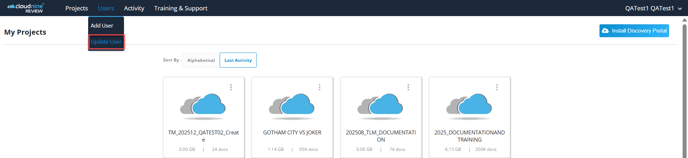
1. Sign in to CloudNine Review. On the My Projects page, select **Users - Update User** from the top menu bar.
2. The **Update User - Select a user -** window opens. Use the drop-down to select the User email to update.
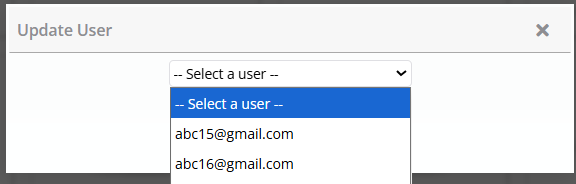
Once selected, the **Update User Data Window** opens.
**Update User Data**
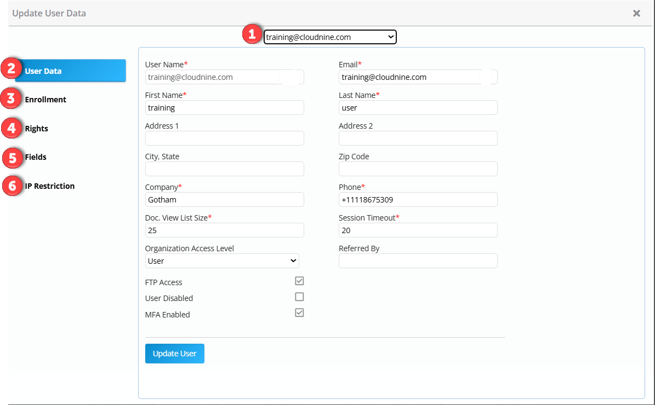
**(1) Select User:** Drop-down list of users within the organization.
**(2) User Data:** The User Data screen allows you to update:
- **Contact Information:** Add or update a user's contact information. The User Name and Email should match.
- **Doc View List Size:** Increase or decrease the number of records listed on the page. The default is 25 records.
- **Session Timeout:** Automatically logs the user out of CloudNine Review after the configured inactivity period (default: 20 minutes).
- **Organization Access Level:** Sets the user's access level at the organization level. There are three Access levels:
- **Global Admin:** The highest level of access in the organization. Global Admin users can access all projects, add/update users, monitor all project activity through the Organization Discovery Queue, and access reports.
- **Reviewer:** The lowest access level in the organization. Reviewers can access only projects to which they are enrolled; the Project Access Level defaults to Project Reviewer. Project Reviewers can only access Review Sets if enabled. If not enabled, a reviewer can access the project database but not search. A reviewer can create a new project and load data into the project. The reviewer is assigned as the Project Admin and can enroll additional users.
- **User:** The most common Organization level. Users will only see projects to which they are enrolled. The project access level will default to Project User. A project user will have access to the project database, including search. Users can create new projects and load data into the project. The user is a ProjectAdmin for any projects they create and can enroll additional users.
- Project-level enrollment and rights can be changed by the Project Admin or a Global Admin.
- **Referred By:** Optional field that can be used for tracking purposes.
- **FTPAccess:** Enabled by default, allows the user to upload data to CloudNine Review.
- **User Disabled:** Disables a user from logging in to CloudNine Review.
- **MFA Enabled:** Selected by default, requires users to use multi-factor authentication when logging in to CloudNine Review.
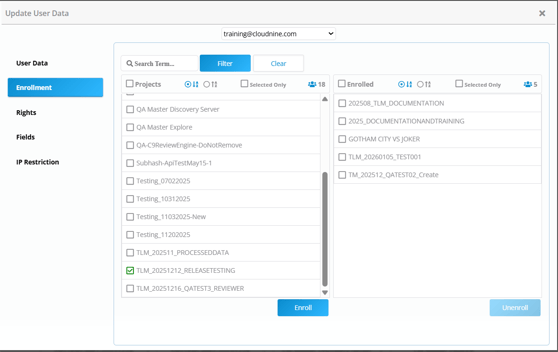
**(3) Enrollment:** Enroll / Unenroll users to projects within the Organization. A Global Admin can enroll/unenroll users to any project in the organization. To enroll/unenroll users in a project, you must be a Project Admin.
**(4) Rights:** Global and Project Admins can specify a user's Access Level and Rights in the Project. Any user who creates a new project and uploads data into it is the Project Admin for the project. When a user is enrolled in a project, the Project Access Level is determined by their Organization Access Level, but can be changed for each project. In addition, specific rights can be added/removed at the project level.
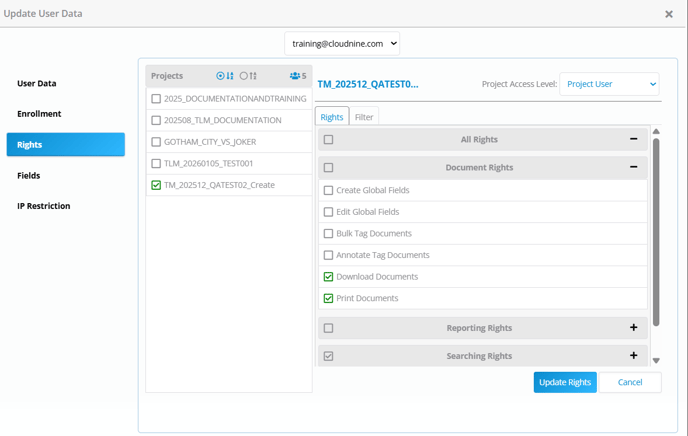
- **Project Access Level:** There are three access levels for a project.
- **Project Admin:** Can update project maintenance, enroll users, and assign rights.
- **Project User:** Has access to the project with the rights given.
- **Project Reviewer:** Only has access to review sets when they are enabled. If not enabled, has access to the full database but not search.
- **Rights:** The table below describes the rights available for each section.
- **All Rights:** Gives the user all rights described in the table below. The Project Admin who creates the project and loads data will have All Rights assigned.
| **Rights** | **Description** |
| --- | --- |
| **Document Rights** | |
| Create Global Fields | The user can add fields to the database that are visible to all users. |
| Edit Global Fields | Users can change global fields. |
| Bulk Tag Documents | Users can group tag document records. |
| Annotate Tag Documents | Ability to redact and annotate documents in the project. |
| Download Documents (default selection) | Ability to download all versions of the document. |
| Print Documents (default selection) | The user can print (image) the current document. |
| **Reporting Rights** | |
| Audit Log Report | The user can access the Audit log report. |
| Index Report | Access to the metadata index report. |
| **Searching Rights** | |
| Full Text Searching | The user can search the document text. |
| **Exporting Rights** | |
| Export Documents | Access to the Self-Service Production tool. |
| Bulk Redaction | Can perform bulk redaction on PII and search term hits. |
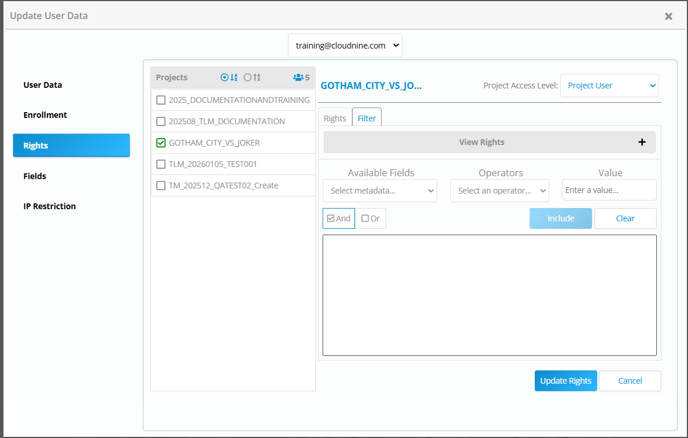
| **Filter - View Rights** | Located on the Filter tab on the Rights screen. View Rights allows you to hide document versions from users. |
| Hide Image Tab | The user cannot see the Images. |
| Hide Native Tab | The user cannot see Native files. |
| Hide Text Tab | Text is not available to the user. |
| Hide HTML Tab | The HTML tab is not available to the user. |
- **Filter:** In addition to setting View Rights, a Filter can be implemented to specify the documents the user can see. For example, you may want the user to only access document records within a specific date range. This is useful when you have a third party, such as an expert witness, and you wish to provide them access to the project, with limits on the documents they can see.
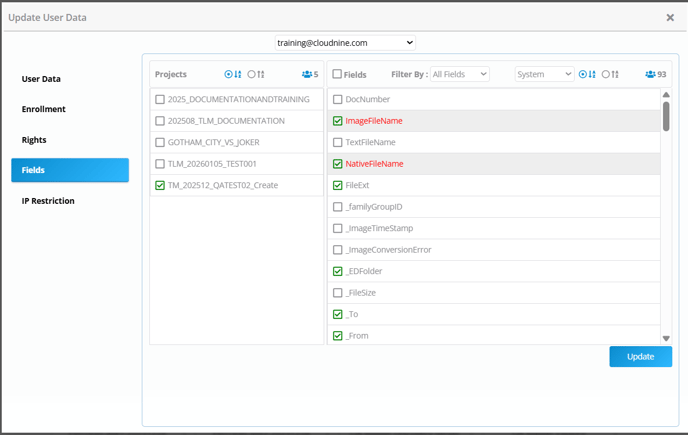
**(5) Fields:** You can also choose the System, Metadata, and Global fields that a user can see, filter, and search.
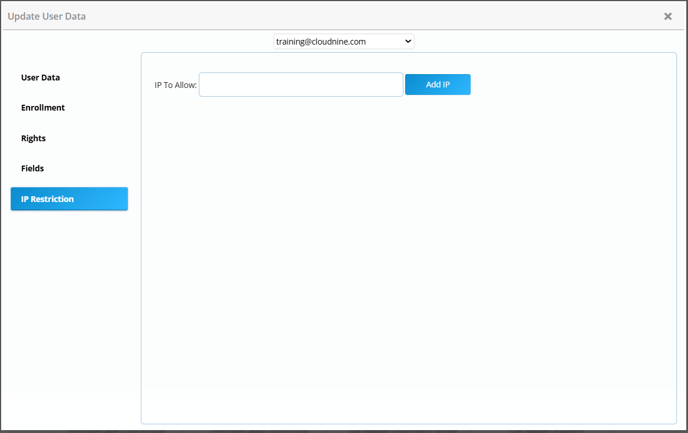
**(6) IP Restrictions:** Enter the IP addresses from which the user is allowed to access CloudNine Review. You can add an unlimited number of IP addresses.
- [CloudNine Training Videos](https://kb.cloudnine.com/cloudnine-training-videos?hsLang=en#main-content)
- [CloudNine Videos by Product](https://kb.cloudnine.com/cloudnine-training-videos?hsLang=en#cloudnine-videos-by-product)
- [CloudNine Review](https://kb.cloudnine.com/cloudnine-review?hsLang=en#main-content)
- [CloudNine Review Video Library](https://kb.cloudnine.com/cloudnine-review?hsLang=en#cloudnine-review-video-library)
- [Section 1: Getting Started](https://kb.cloudnine.com/cloudnine-review?hsLang=en#section-1-getting-started)
- [Getting Started: My Projects](https://kb.cloudnine.com/cloudnine-review?hsLang=en#getting-started-my-projects)
- [Section 2: Understanding Different Views](https://kb.cloudnine.com/cloudnine-review?hsLang=en#section-2-understanding-different-views)
- [Section 3: Searching](https://kb.cloudnine.com/cloudnine-review?hsLang=en#section-3-searching)
- [Section 3A. Smart Filters](https://kb.cloudnine.com/cloudnine-review?hsLang=en#section-3a-smart-filters)
- [3b: Search Term Lists](https://kb.cloudnine.com/cloudnine-review?hsLang=en#3b-search-term-lists)
- [Section 4: Working with Documents](https://kb.cloudnine.com/cloudnine-review?hsLang=en#section-4-working-with-documents)
- [Generating Images](https://kb.cloudnine.com/cloudnine-review?hsLang=en#generating-images)
- [Automated Redaction](https://kb.cloudnine.com/cloudnine-review?hsLang=en#automated-redaction)
- [Exporting/Producing](https://kb.cloudnine.com/cloudnine-review?hsLang=en#exporting-producing)
- [Section 5: Administrative Functions](https://kb.cloudnine.com/cloudnine-review?hsLang=en#section-5-administrative-functions)
- [Reporting](https://kb.cloudnine.com/cloudnine-review?hsLang=en#reporting)
- [Frequently Asked Questions and Issues](https://kb.cloudnine.com/cloudnine-review?hsLang=en#frequently-asked-questions-and-issues)
- [Cloud Connector](https://kb.cloudnine.com/cloudnine-review?hsLang=en#cloud-connector)
- [EULA](https://kb.cloudnine.com/cloudnine-review?hsLang=en#eula)
- [CloudNine Discovery Portal](https://kb.cloudnine.com/cloudnine-discovery-portal?hsLang=en#main-content)
- [CloudNine Discovery Portal Video Library](https://kb.cloudnine.com/cloudnine-discovery-portal?hsLang=en#cloudnine-discovery-portal-video-library)
- [Getting Started](https://kb.cloudnine.com/cloudnine-discovery-portal?hsLang=en#getting-started)
- [File System Workflows](https://kb.cloudnine.com/cloudnine-discovery-portal?hsLang=en#file-system-workflows)
- [Data Transfer Workflows](https://kb.cloudnine.com/cloudnine-discovery-portal?hsLang=en#data-transfer-workflows)
- [LAW Bridge](https://kb.cloudnine.com/cloudnine-discovery-portal?hsLang=en#law-bridge)
- [Global Monitoring Console](https://kb.cloudnine.com/cloudnine-discovery-portal?hsLang=en#global-monitoring-console)
- [Advanced Features & Troubleshooting](https://kb.cloudnine.com/cloudnine-discovery-portal?hsLang=en#advanced-features-troubleshooting)
- [LAW](https://kb.cloudnine.com/law?hsLang=en#main-content)
- [CloudNine LAW Video Library](https://kb.cloudnine.com/law?hsLang=en#cloudnine-law-video-library)
- [CloudNine LAW: Did You Know?](https://kb.cloudnine.com/law?hsLang=en#cloudnine-law-did-you-know)
- [Installation and Setup](https://kb.cloudnine.com/law?hsLang=en#installation-and-setup)
- [Print Queue Management](https://kb.cloudnine.com/law?hsLang=en#print-queue-management)
- [Turbo Import](https://kb.cloudnine.com/law?hsLang=en#turbo-import)
- [ED Loader](https://kb.cloudnine.com/law?hsLang=en#ed-loader)
- [Errors](https://kb.cloudnine.com/law?hsLang=en#errors)
- [Email](https://kb.cloudnine.com/law?hsLang=en#email)
- [Endorse](https://kb.cloudnine.com/law?hsLang=en#endorse)
- [Document Numbering](https://kb.cloudnine.com/law?hsLang=en#document-numbering)
- [Annotations](https://kb.cloudnine.com/law?hsLang=en#annotations)
- [Image Conversion](https://kb.cloudnine.com/law?hsLang=en#image-conversion)
- [Near Dupe](https://kb.cloudnine.com/law?hsLang=en#near-dupe)
- [SQL](https://kb.cloudnine.com/law?hsLang=en#sql)
- [Batch Printing HTML](https://kb.cloudnine.com/law?hsLang=en#batch-printing-html)
- [DataSent](https://kb.cloudnine.com/law?hsLang=en#datasent)
- [Filter and Search](https://kb.cloudnine.com/law?hsLang=en#filter-and-search)
- [Administration](https://kb.cloudnine.com/law?hsLang=en#administration)
- [Explore](https://kb.cloudnine.com/explore?hsLang=en#main-content)
- [CloudNine Explore Video Library](https://kb.cloudnine.com/explore?hsLang=en#cloudnine-explore-video-library)
- [Managing Cases](https://kb.cloudnine.com/explore?hsLang=en#managing-cases)
- [Importing](https://kb.cloudnine.com/explore?hsLang=en#importing)
- [Searching](https://kb.cloudnine.com/explore?hsLang=en#searching)
- [Exporting](https://kb.cloudnine.com/explore?hsLang=en#exporting)
- [Concordance](https://kb.cloudnine.com/concordance?hsLang=en#main-content)
- [Searching](https://kb.cloudnine.com/concordance?hsLang=en#searching)
- [eDocs](https://kb.cloudnine.com/concordance?hsLang=en#edocs)
- [Email](https://kb.cloudnine.com/concordance?hsLang=en#email)
- [Other](https://kb.cloudnine.com/concordance?hsLang=en#other)
- [Exporting](https://kb.cloudnine.com/concordance?hsLang=en#exporting)
- [Proof of Concept](https://kb.cloudnine.com/concordance?hsLang=en#proof-of-concept)
- [Concordance Desktop](https://kb.cloudnine.com/concordance-desktop?hsLang=en#main-content)
- [Email Database](https://kb.cloudnine.com/concordance-desktop?hsLang=en#email-database)
- [CloudNine Analyst](https://kb.cloudnine.com/cloudnine-analyst?hsLang=en#main-content)
- [CloudNine Analyst Video Library](https://kb.cloudnine.com/cloudnine-analyst?hsLang=en#cloudnine-analyst-video-library)
- [FAQ](https://kb.cloudnine.com/cloudnine-analyst?hsLang=en#faq)
- [Known Issues and Behavior](https://kb.cloudnine.com/cloudnine-analyst?hsLang=en#known-issues-and-behavior)
- [Account](https://kb.cloudnine.com/cloudnine-analyst?hsLang=en#account)
- [Projects](https://kb.cloudnine.com/cloudnine-analyst?hsLang=en#projects)
- [Import](https://kb.cloudnine.com/cloudnine-analyst?hsLang=en#import)
- [Export](https://kb.cloudnine.com/cloudnine-analyst?hsLang=en#export)
- [Machine Translation](https://kb.cloudnine.com/cloudnine-analyst?hsLang=en#machine-translation)
- [Reports](https://kb.cloudnine.com/cloudnine-analyst?hsLang=en#reports)
- [Investigations](https://kb.cloudnine.com/cloudnine-analyst?hsLang=en#investigations)
- [ESIA Desktop](https://kb.cloudnine.com/cloudnine-analyst?hsLang=en#esia-desktop)
- [ESIA Sync](https://kb.cloudnine.com/cloudnine-analyst?hsLang=en#esia-sync)
- [Administration](https://kb.cloudnine.com/cloudnine-analyst?hsLang=en#administration)
- [On Premise Software Q&A](https://kb.cloudnine.com/on-premise-software-qa?hsLang=en#main-content)
- [On Premise Software](https://kb.cloudnine.com/on-premise-software-qa?hsLang=en#on-premise-software)
- [EULA](https://kb.cloudnine.com/on-premise-software-qa?hsLang=en#eula)
[](http://www.cloudnine.com)
12848 Queensbury Lane, Suite 208 | Houston, TX 77024 | 713-999-4280 | [info@cloudnine.com](mailto:info@cloudnine.com)
Copyright © 2026, CloudNine