
In eDiscovery, review teams use keywords, phrases, and search term lists to identify potentially relevant and/or responsive documents. Some search terms are deemed "highly important," and you want those keywords highlighted throughout the review workflow.
In CloudNine Review, the Persistent Highlights feature ensures those highly important search terms or phrases remain highlighted throughout the document review, whether or not they are part of the active search.
To Enable Persistent Highlights:
Click here to watch a video on Persistent Highlights.
If you have not already:
- Navigate to the CloudNine Review site; on the Welcome Screen, enter your Login Credentials and complete the two-factor authentication.
- On the My Projects CloudNine Review home screen, select your project.
In the CloudNine Review Project:
- Click the Advanced Search button at the top-right of the project page.
- On the Advanced Search page, you'll see six search options: Advanced Search Builder, Saved Searches, Recent Searches, Search Term Lists, Persistent Highlights, and Filtering. Select Persistent Highlights.
- On the Persistent Highlights page, enter the keyword or term in the text box beneath Term To Highlight.
- Use the drop-down to choose one of the twelve Persistent Highlight colors to assign to the search term.
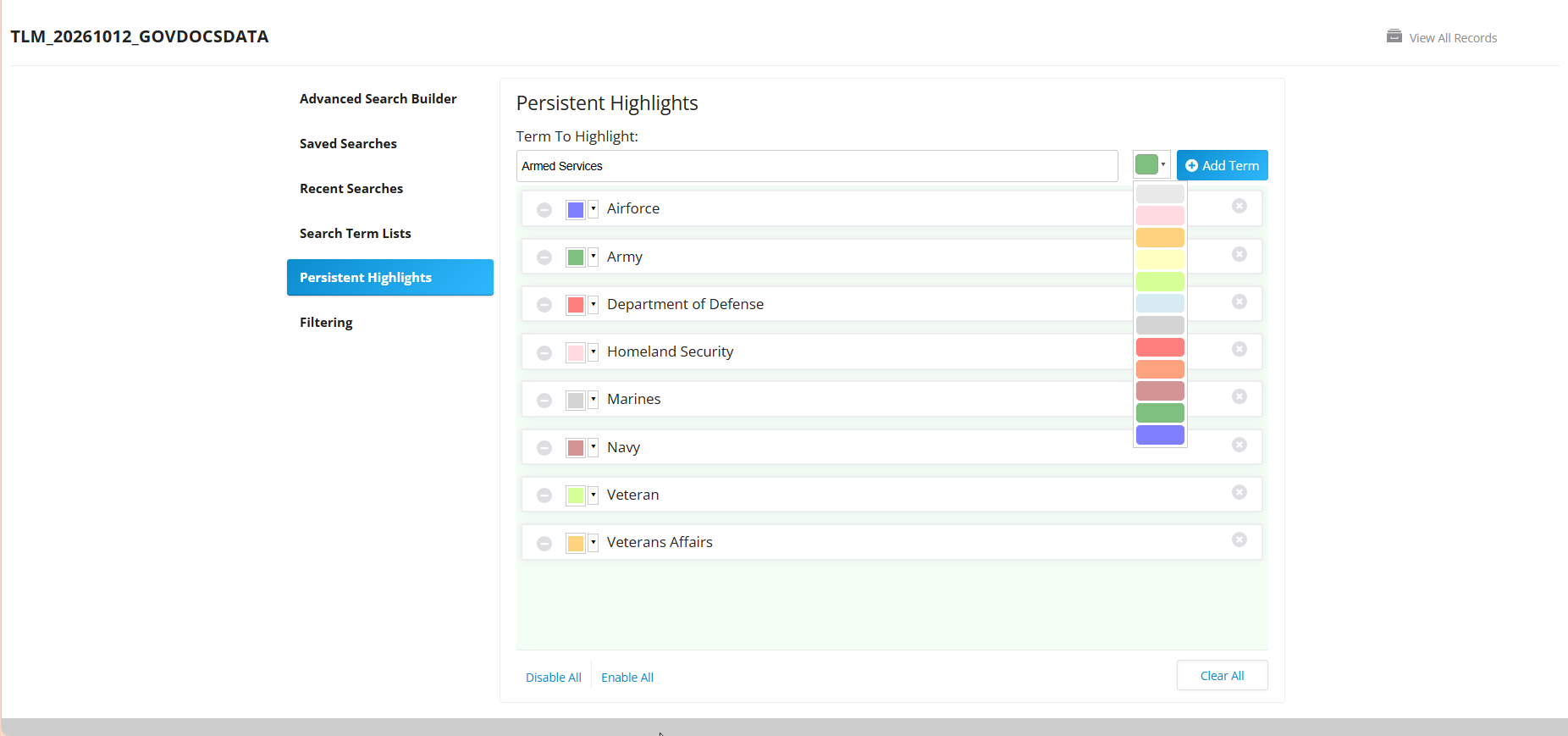
- Click Add Term to add the keyword or term to the Persistent Highlights term list. The keyword is added and will appear highlighted in the database until you disable or delete the term from the Persistent Highlight list.
Edit a Term from the Persistent Highlight Term List
You can disable, change highlight color, or delete a specific search term.

A. disable / enable term: Turns off the persistent highlight for the selected term, but does not remove the term from the Persistent Highlight list. The term will remain in the list with a line through it to indicate it is currently disabled. To enable the term, click the plus next to it.

B. Highlight Color: Change the highlight color for the selected term.
C. delete term: Removes the term from the Persistent Highlight list.
Disable All or Enable All Option
To turn Persistent Highlights off, select the Disable All option at the bottom left of the Persistent Highlights page. Select Enable All to turn Persistent Highlights on.
Delete the Persistent Highlights Term List
The Clear All option at the bottom right of the Persistent Highlights page will remove all keywords and search terms from the Persistent Highlights term list.