
The required System and Metadata fields are automatically created when new CloudNine Review projects are created. A complete list of System / Metadata fields and their definitions can be found here.
In addition to the existing system fields, users can create fields in a CloudNine Review project to Tag and Code information about the record. In this article, you will learn how to create and edit user fields, change field order, and change field visibility. Click any of the links below to navigate to a specific topic.
Change Field Order and Visibility
👥All users can create private (local) fields. Only users with the appropriate Document Rights can create or edit global fields. A global or project admin can grant users the necessary Rights.
Working with Fields
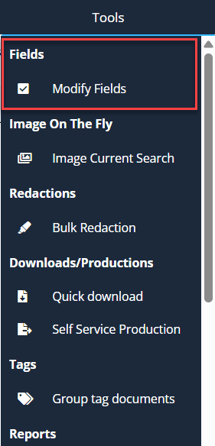
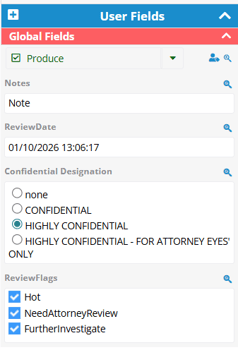
In the CloudNine Review Project, select Tool - Fields - Modify Fields from the menu bar or click the plus + icon at the top-left of the User Fields panel  .
.
Modify Fields Window
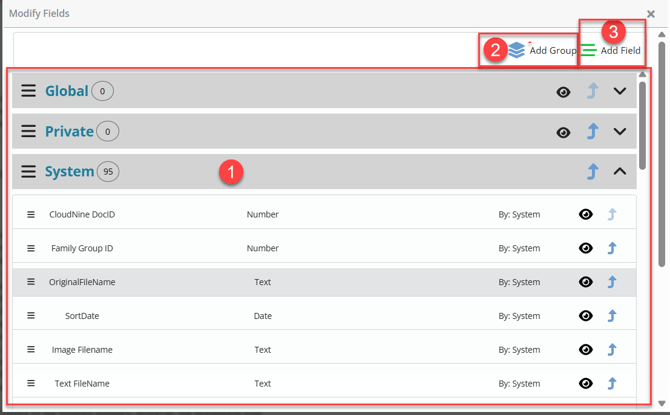
(1). Groups: There are three pre-defined groups used to organize fields. The circle next to the group indicates the number of fields in the group.
-
Global: Default setting for user-created fields with Global scope, visible to all project users.
-
Private: Fields created by a user with Local scope are visible only to that user.
- System: All necessary system and metadata fields for a CloudNine Review project. These fields are automatically created when the project is created.
(2). Add Group: If needed, additional groups can be added. Once a group is created, user-created fields can be assigned to the group. Groups can be global (available to all users) or private.
(3). Add Field: Select this option to create fields in the database.
Create a New Field
-
On the Modify Fields window, select the Add Field option. The Create: New Field window opens.
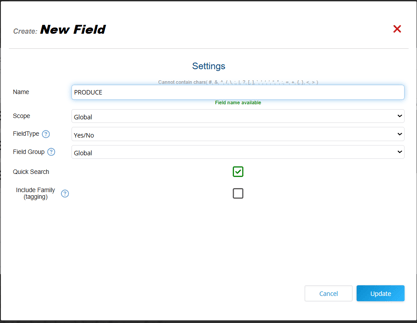
- Type a Name for the field; non-supported characters are listed above the text box. Below the text box, a message appears. Available fields will have a green message indicating Field name is available. If the Field name is not available, a red Field name is taken message appears.
- Select the Scope from the drop-down. There are two options:
- Global: The field is available for all users with access to the project and will be added to the Global group. On the Vertical Doc List and Native Tree Views, it will appear under User Fields. You must have rights to create Global fields.
- Local: Fields are grouped as Private and are visible only to the user who created them.
- Next, select the Field Type from the drop-down list. The following Field Types are available
- Text: Enter information about the record, up to 4000 characters.
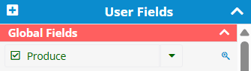
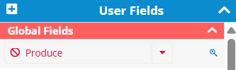
- Yes/No (default): Common user-created field with value of On (yes) or Off (no). In Vertical Doc List and Native Tree Views, if the field is Yes (on) for the record, a check appears, and the field name is green. If the field is not on for a record, a No (off) symbol appears, and the field name is red.
- Date: The value entered must be a date in the format MM/DD/YYYY.
- Number: Requires a numeric value to be input.
- Select: Pre-defined values are entered to create a drop-down list. The field is populated by the user selecting a single item from the list.
- Multi-Select: Similar to the Select field type, a drop-down list of values is created. The user can select one or more items from the list to populate the field.
- When the Select or Multi-Select field type is selected, the New Field window expands to open the Select Options. Here, type the values that will appear in the drop-down lists for selection.
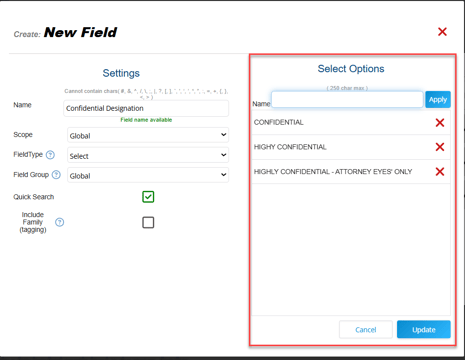
- Choose the Field Group you wish to assign the field to.
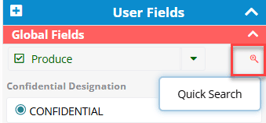
- Quick Search: if enabled (checked), a "search" icon appears next to the field. When the search (magnifying glass) icon is clicked, the Quick Search window launches allow you to review all records that have the same value for that field.
- The Include Family (tagging) option automatically updates all family records with the value.
- After selecting the Field Name, Scope, Field Type, Field Group, and optional Quick Search and Include Family options, you are ready to create the field. Click Update to create the field.
- The field is created, and you are returned to the Create: New Field window to create the next field. If all fields are created, click Cancel to close the window.
- On the Modify Fields window, expand the group you assigned the field to. The field now appears in the group.
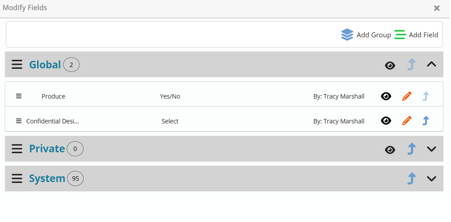
The fields are created and will appear under User Fields - <Group> in the Vertical Doc List and Native Tree Views.
Edit or Delete a User Created Fields
User-created fields can be edited or deleted.
Edit a Field
-
In the Project, select Tools - Fields - Modify Fields. The Modify Fields window opens.
- Click the down arrowhead to expand the Group that contains the field you wish to edit or delete.
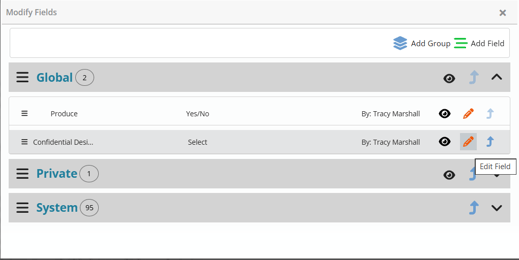
- Open the Field Editor by clicking the pencil icon
 . The Editing: <FieldName> window opens.
 - The Name, Scope, Field Group, Quick Search, and Include Family (tagging) can be edited. The Field Type cannot be changed.
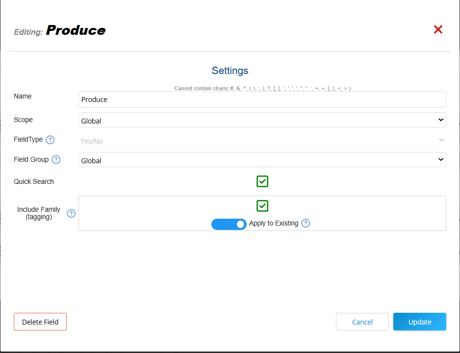
- If the Include Family (tagging) option is enabled, select Apply to Existing to update the entire family for any documents that are already tagged.
- Click Update in the bottom-right corner to apply the changes to the field.
Delete a Field
To delete a field, select the Delete Field option in the bottom left corner of the Editing: <Field> window. The field and any data in the field are deleted from the project.
Creating / Editing Groups
Groups are used to organize fields in a project. There are three predefined groups: Global (available to all users), Private (Local - available to the user who created the field), and System. If desired, additional groups can be added to further organize fields in the project. For example, if multiple review teams are working on the project, you may wish to group the fields they are updating.
Add Group
-
In the Modify Fields (Tools - Fields - Modify Fields) window, click Add Group. The New Group window opens.
-
In the text box below Group Name, type a name for the Group you wish to create.
- In the left Field Selection column, click to check (select) the box next to the field name. Fields for the group appear in the Field Selection column on the right.
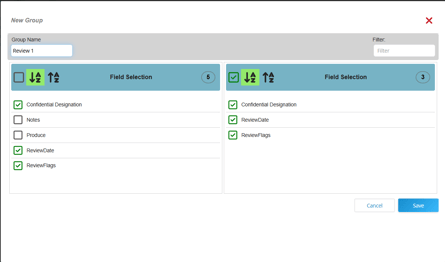
- Click Save. The Group is saved with the selected fields. The Modify Fields window displays the group and its fields.
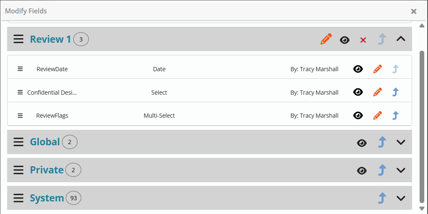
- Close the Modify Fields window, and the Group is visible under the User Fields panel.
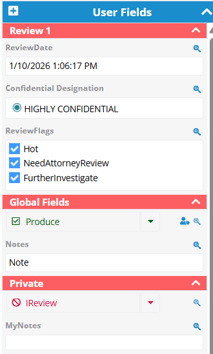
Edit a Group
-
To make changes to a user-created group, click the pencil icon
 for the group. The Editing: <Group Name> window opens. Make changes to the group, then click Save.
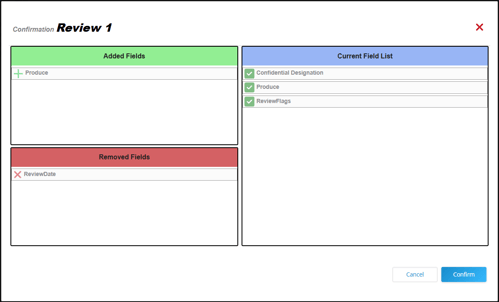
 - A Confirmation: <Group Name> window opens and shows any Added or Removed fields and the Current Field List for the group. Click Confirm to save the changes, or Cancel to return to the edit window.
Change Field Order and Visibility
In the Modify Fields window you can arrange the order fields are displayed and whether a field is visible in a project.
-
On the projects main page, select Tools - Fields - Modify Fields to open the Modify Fields window.
- Expand any Group by clicking the down arrowhead icon at the right. The fields available for the group are listed.
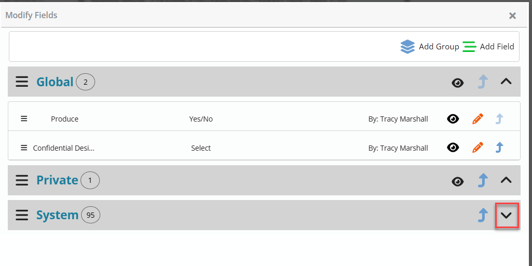
- Left click and drag the hamburger icon
 next to field you wish to move, drop to place it before or after another field.
 - To move a field to the top of the field list, click the blue up arrow icon
 .
. - Toggle visibility of the field by clicking the eye icon
 . A line through the icon
  shows the field is not visible in the project.
- Left click and drag the hamburger icon