
About CloudNine’s Cloud Connector
CloudNine’s Cloud Connector securely transfers Microsoft 365 email and OneDrive data directly into CloudNine Review. The connector reduces the need to download content or manually create mail stores, such as PST files, by transferring and processing selected Microsoft 365 data through CloudNine Review.
This guide explains the two-part configuration process: first, creating and permissioning the third-party application connection in Microsoft Entra; second, adding the resulting connection details in CloudNine Review so the connector can collect the data.
At a high level, the Cloud Connector setup includes four implementation tasks:
- Register a single-tenant application in Microsoft Entra ID,
- Configure the redirect URI and authentication credential,
- Grant the required Microsoft Graph permissions with admin consent, and
- Enter the captured application details into CloudNine Review to create the connector.
Download Version: CloudConnector_ThirdPartyConnectionSetupandConfigM365
Before you Begin
You need the following before you can start the configuration.
Microsoft Requirements
- An active Microsoft 365 subscription account.
- A Microsoft Entra ID Global Administrator or Application Administrator is available to register the application and grant administrator consent.
CloudNine Requirements
- You have CloudNine Review Global Administrator permission.
- You can access the Connectors administration area within CloudNine Review.
Information to Capture
During setup in Microsoft Entra ID, record the following values:
- Application (Client) ID
- Directory (Tenant) ID
- Client Secret Value
You will need these values to configure the connector in CloudNine Review.
Helpful Microsoft Resources
- Register an Application: The foundational guide for creating an app identity in Entra ID.
- Configure API Permissions: Detailed steps on how to add and authorize permissions for your registered app.
- Add a Redirect URI: Security feature for Microsoft Entra ID authentication is sent to the intended recipient.
- Microsoft Graph Permissions Reference: A complete list of all scopes for emails (Mail.*) and files (Files.*).
- Granting Admin Consent: Instructions for administrators to approve high-privilege permissions tenant-wide.
- Restrict App to Users: Provides information on restricting users that can access the app.
Microsoft Entra ID Application Registration Requirements
Cloud Connector authenticates to Microsoft 365 through a dedicated application registration. This application establishes a secure trust relationship between your Microsoft environment and CloudNine Review.
Create the Application
- Sign in to the Microsoft Entra Admin Center.
- Navigate to Identity -> Applications -> App registrations.
- Select New Registration.
- Enter the following Configuration:
- Name: CloudNine Cloud Connector M365.
- Supported Account Types: Accounts in this organizational directory only (Single tenant).
- Click Register.
- Copy and save the following; you will use these values later when creating the Cloud Connector.
- Application (Client) ID
- Directory (Tenant) ID
Create a Client Secret
Cloud Connector uses a client secret to securely authenticate with Microsoft services.
Important: Microsoft displays the secret value only once. Copy and securely store the secret immediately. Once you leave the page, you cannot view the value again.
- Open the application registration.
- Select Certificates & secrets.
- Select New Client Secret.
- Enter a description and expiration period.
- Create the secret.
Managing Secret Expiration
To avoid service interruptions:
- Monitor secret expiration dates.
- Create a replacement secret before the existing secret expires.
- Update the Cloud Connector configuration with the new secret value.
Add a Redirect URI (required)
A Redirect URI is necessary for the desktop application, CloudNine Discovery Portal, and Cloud Connector to pull data from Purview and send data to CloudNine Review. Under Manage, select Authentication.
- Under Platform Configurations, select Add a platform.
- Choose Mobile and desktop applications.
- In the Redirect URI field, enter http://localhost:5000.
- Select Configure to complete.
Assign Microsoft 365 API Permissions (Microsoft Graph API)
Cloud Connector requires access to the Microsoft Graph API to collect mailbox and OneDrive data. Select Application permissions and grant tenant-wide administrative consent.
- In the application registration menu, navigate to Manage -> API permissions.
- Select Add a permission, choose Microsoft Graph, and select Application permissions.
- Locate and check the boxes for the following permissions.
| API / Permission Name | Type | Description | Admin Consent Required |
| Calendars.Read | Delegated | Read calendars in all mailboxes. | Yes |
| Calendars.Read | Application | Read calendars in all mailboxes. | Yes |
| Files.Read.All | Delegated | Read files in all site collections and OneDrive accounts. | Yes |
| Files.Read.All | Application | Read files in all site collections and OneDrive accounts. | Yes |
| Mail.Read | Delegated | Read email in all mailboxes. | Yes |
| Mail.Read | Application | Read email in all mailboxes. | Yes |
| User.Read.All | Delegated | Read full user profiles and directory data. | Yes |
| User.Read.All | Application | Read full user profiles and directory data. | Yes |
Grant Administrator Consent
- Click Add Permission.
- Select Grant admin consent for [Your Tenant Name], then click Yes to confirm.
- Verify that each permission displays a green checkmark icon in the Status column indicating consent has been granted.
Optional access control: After the application is registered, you can restrict who can access the enterprise application by enabling assignment required and assigning only approved users or groups. Confirm the proper configuration in Microsoft Entra documentation before relying on this setting to limit data exposure.
Making the Connection in CloudNine Review
After you register the application in Microsoft Entra ID and assign permissions, follow these steps to set up the active connector in CloudNine Review.
- Sign in to CloudNine Review as a Global Administrator.
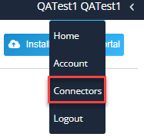
- On the My Projects page, select the User Menu in the top-right corner and choose Connectors.
- In the Connector - Create New window, populate the following fields:
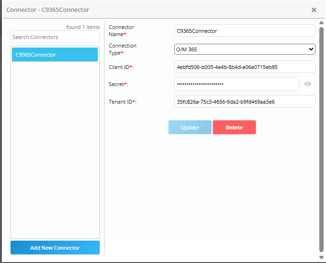
- Connector Name: Type a unique identifying name (e.g., C9R365Connector).
- Connection Type: Select O/M 365 from the drop-down list.
- Client ID: Paste the Application (client) ID copied from Microsoft Entra ID.
- Secret: Paste the Client Secret generated in Microsoft Entra ID.
- Tenant ID: Paste the Directory (tenant) ID copied from Microsoft Entra ID.
- Click Create New. The Connector is created and appears under the Connectors list in the left column. To edit or delete the Connector, highlight the Connector Name, make any necessary changes, and then click Update or Delete.
Validation checklist:
- Confirm the connector appears in the Connectors list
- The expected Microsoft 365 source type is available
- The configured client ID and tenant ID match the Microsoft Entra application registration
- A small test collection completes successfully before production use.
Note: You can add multiple connectors to CloudNine Review, allowing your IT administrator to register apps in Microsoft Entra ID to better control user access to specific data. For example, you may want connectors created by location or department.
Configuring Cloud Connector in CloudNine Review
Transferring data to CloudNine Review